
Zoom integration
Last updated March 2026
Individual account integration
The Zoom integration is linked to your personal Roadmappy account, not the workspace. Every team member who wants the bot to join their Zoom meetings must connect their own Zoom account individually.
Overview
As of March 2026, Zoom requires individual user authentication before a bot can join an external Zoom meeting. This means each Roadmappy user must connect their personal Zoom account once — after that, the meeting bot can join any Zoom call you host or are invited to, automatically transcribing and summarising the conversation.
Step 1 — Open the Zoom integration card
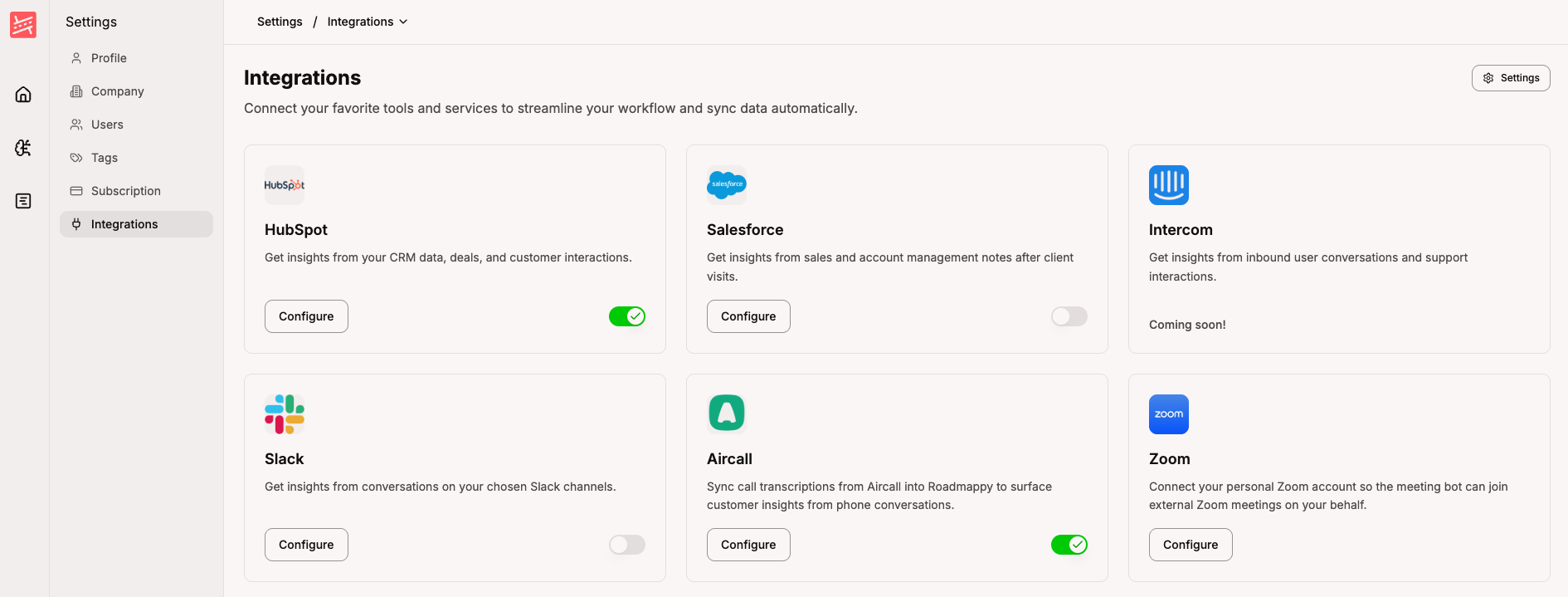
Go to Settings → Integrations. You will see the Integrations page listing all available connections. Find the Zoom card and click Configure.
Step 2 — Connect your Zoom account
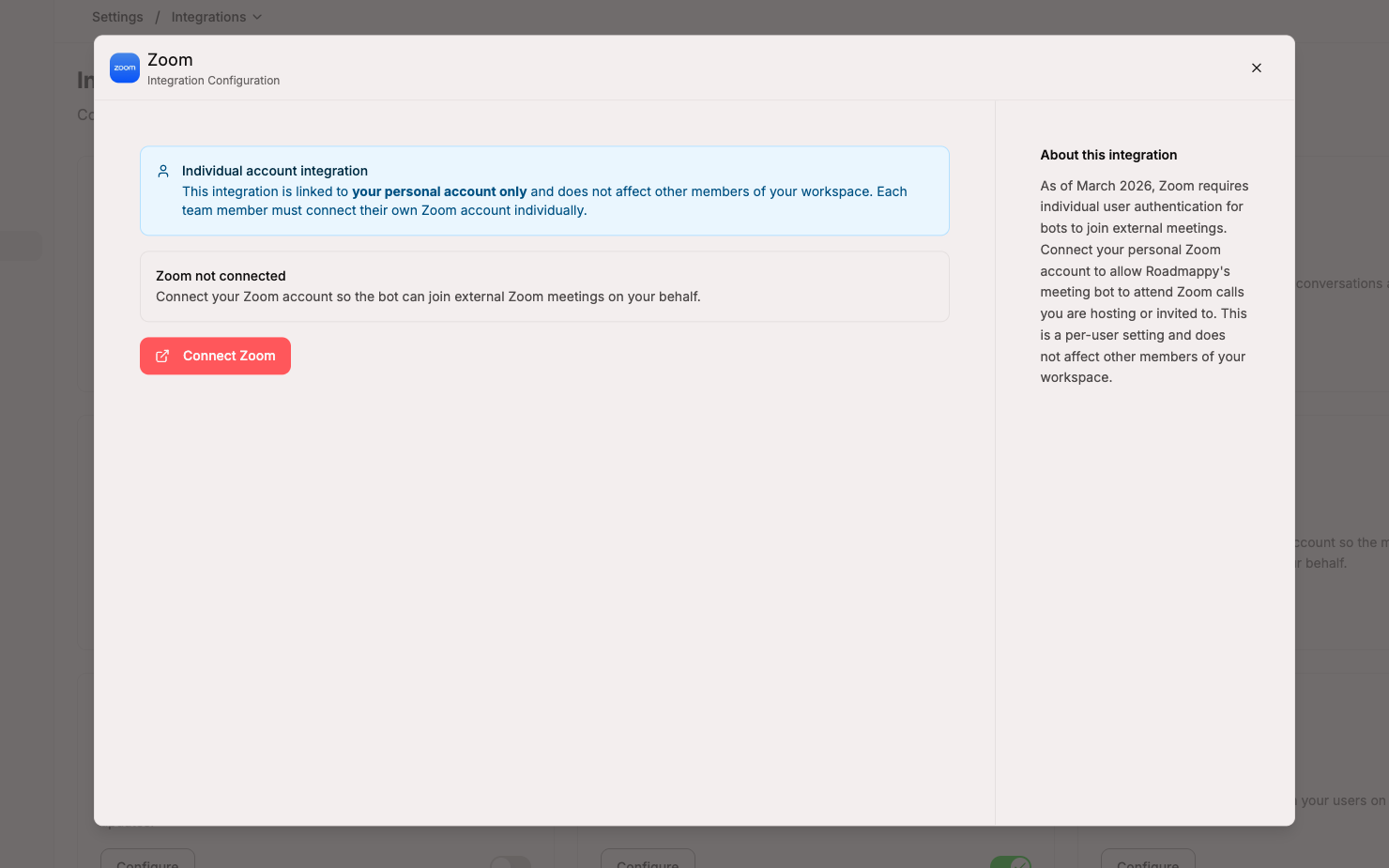
The Zoom integration modal opens. You will see a blue notice confirming that this connection applies only to your personal account. Click Connect Zoom to begin the OAuth flow. A popup window will open — if your browser blocks popups, you will be redirected in the same tab instead.
Step 3 — Approve Zoom permissions
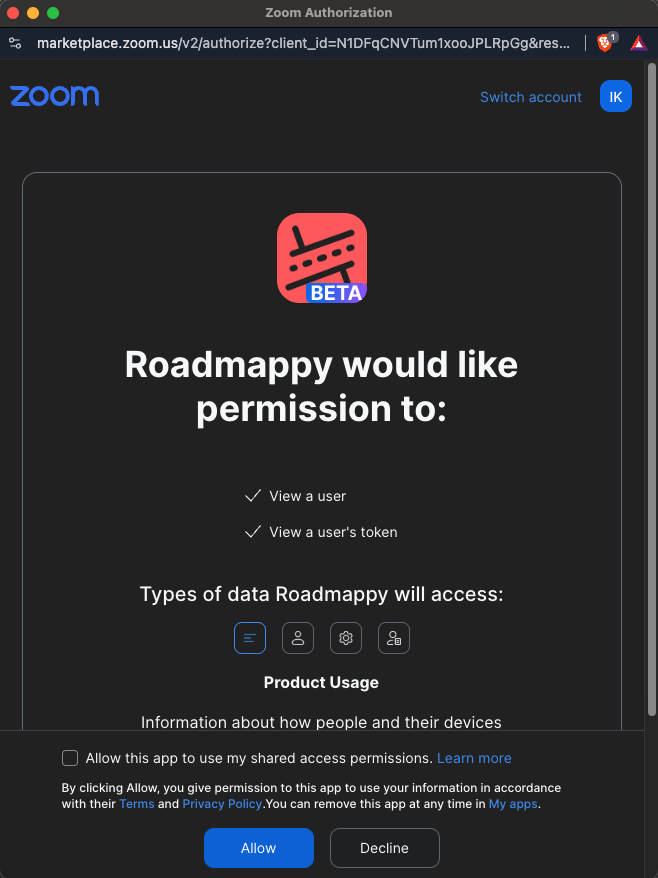
Zoom will ask you to authorise Roadmappy. Review the requested permissions and click Allow. Roadmappy only requests the minimum scopes needed for the bot to join meetings on your behalf — it does not access your recordings, contacts, or calendar.
Step 4 — Confirm the connection
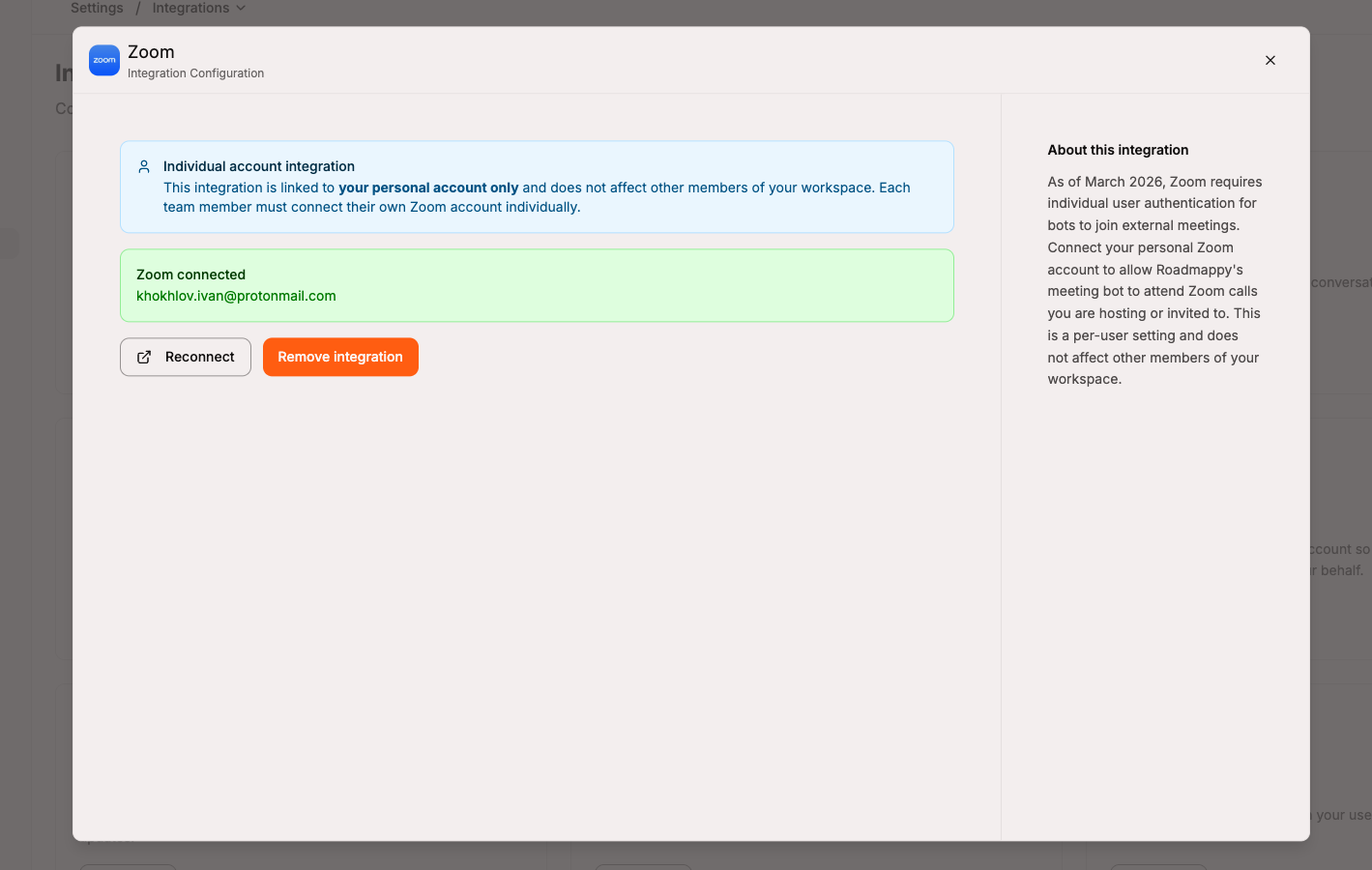
After approving, you are returned to Roadmappy. The modal now shows a green Zoom connected confirmation along with your Zoom email address. Your account is ready — the bot will now be able to join Zoom meetings you add to Roadmappy.
Using Zoom with the meeting bot
When you add a Zoom meeting URL to the Note Taking Assistant, Roadmappy automatically detects that it is a Zoom link and checks your connection status. If your account is connected, a green confirmation appears. Click Add Meeting Bot and the bot will join at the scheduled time.
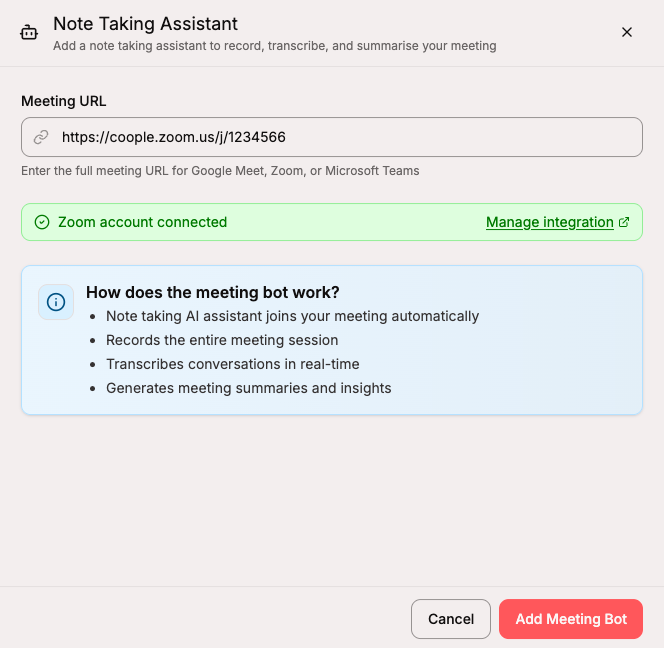
The Manage integration link in that confirmation row takes you straight back to the Integrations page if you need to update your connection.
Removing the integration
To disconnect your Zoom account, open Settings → Integrations, click Configure on the Zoom card, and click Remove integration. A confirmation prompt appears — click Remove to delete your Zoom credentials from Roadmappy. The meeting bot will no longer be able to join Zoom meetings on your behalf until you reconnect.
You can reconnect at any time by clicking Connect Zoom in the same modal.
Recording Zoom calls with the meeting bot
Once your Zoom account is connected, you can send the Roadmappy meeting bot to any Zoom call. The bot joins as a participant, records the session, and produces a transcript and AI summary you can review in Roadmappy.
For full instructions on adding the bot, managing recordings, and reviewing summaries, see the Meeting bot guide.
Troubleshooting
The bot didn't join my Zoom meeting
- Confirm your Zoom account is connected — open the Zoom modal in Settings → Integrations and check for the green connected status.
- Make sure you added the meeting bot at least a few minutes before the meeting started.
- If you recently changed your Zoom password or revoked app access, click Reconnect in the integration modal to refresh your credentials.
The popup was blocked
Some browsers block popups by default. If the Zoom authorisation window does not open, allow popups for Roadmappy in your browser settings and try again. Alternatively, Roadmappy will fall back to a full-page redirect automatically.
I need to connect a different Zoom account
Click Reconnect in the integration modal. This restarts the OAuth flow and lets you sign in with a different Zoom account, replacing the previously stored credentials.
My teammates can't get the bot to join their Zoom calls
Each team member must connect their own Zoom account individually. The Zoom integration is per-user — one person connecting their account does not cover the rest of the workspace. Share this article with teammates who need to set up their own connection.
Still have questions? Contact us at support@roadmappy.io and we'll get back to you.