
Meeting recordings
Last updated May 2026
Already have a recording?
If you have a video or audio file you'd like to analyse, you can upload it directly — no calendar connection needed. Learn how to upload recordings.
Roadmappy connects to your Google or Microsoft calendar, detects upcoming meetings with video links, and automatically sends a notetaker bot to record, transcribe, and analyse each call. This guide covers connecting your calendar, choosing which meetings to record, and managing your settings.
Supported platforms
| Platform | Calendar sync | Bot recording |
|---|---|---|
| Google Meet | Yes | |
| Microsoft Teams | Microsoft | Yes |
| Zoom | Google or Microsoft | Yes (requires Zoom integration) |
Step 1 — Connect your calendar
From the home screen, find the upcoming meetings widget and click Connect your calendar to start the setup flow.
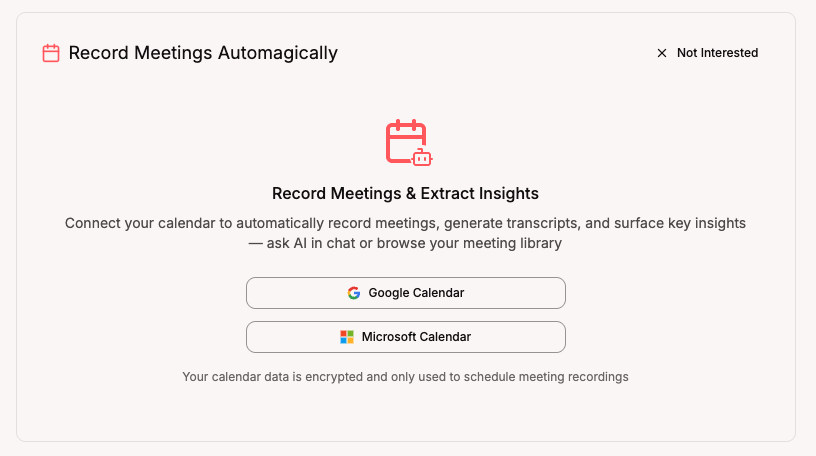
You can also connect a calendar at any time from Settings → Calendars (
/app/settings/calendars/).Google Calendar
Clicking Connect Google opens the Google consent screen. Roadmappy requests two read-only permissions:
- Calendar (read-only) — to see your upcoming events and their video links
- Email address — to identify your account
Roadmappy never creates, modifies, or deletes events on your calendar.
Microsoft Calendar (Outlook / Microsoft 365)
Clicking Connect Microsoft opens the Microsoft consent screen. Roadmappy requests:
- Calendars.Read — to read your calendar events
- User.Read — to read your basic profile
As with Google, Roadmappy has read-only access and cannot modify your calendar. If your organisation requires admin consent for third-party apps, an Azure AD admin may need to approve the permissions before you can connect.
Read-only access
Roadmappy only reads your calendar to detect upcoming meetings. It never creates, edits, or deletes any events.
Step 2 — Choose which meetings to record
After connecting your calendar, the onboarding flow asks you to configure how the bot behaves. You set three things:
- Bot display name — the name other participants see when the bot joins (e.g. "Acme Notetaker"). Maximum 30 characters.
- Automatic recording mode — controls which meetings the bot joins automatically:
| Mode | What gets recorded |
|---|---|
| All meetings | Every meeting with a video link |
| External only | Only meetings where at least one attendee is outside your email domain |
| Internal only | Only meetings where all attendees share your email domain |
| None | No automatic recording — you control each meeting manually |
- Zoom integration (optional) — if you use Zoom for calls, you can connect your Zoom account so the bot can join Zoom meetings. This step is skippable and can be done later from Settings.
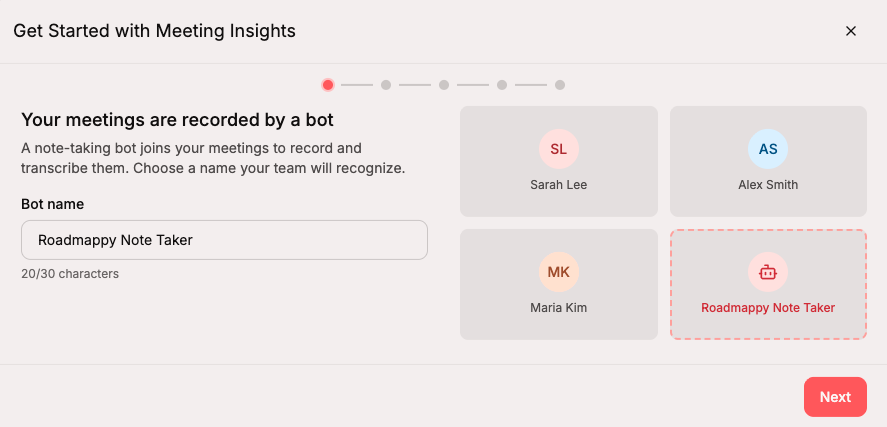
Step 3 — Your meetings sync automatically
Once your calendar is connected, Roadmappy syncs your upcoming meetings and shows them on your home screen. Each meeting card shows the title, time, platform, and a toggle to enable or disable the bot for that specific meeting.
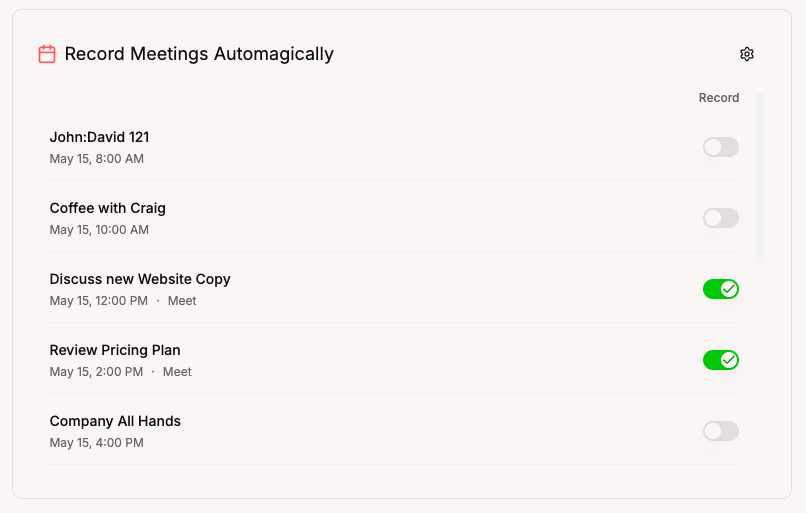
Meetings sync automatically via webhooks — when you create, update, or cancel a meeting in your calendar, Roadmappy picks up the change within seconds. A background sync also runs periodically to catch anything webhooks may have missed.
Toggle the bot for individual meetings
Regardless of your automatic recording mode, you can always override the bot for a specific meeting:
- Turn on — flip the toggle on a meeting card to send the bot to that meeting
- Turn off — flip it off to prevent the bot from joining
This is useful when your default mode is "External only" but you want to record a specific internal meeting, or vice versa.
Add the bot to a one-off meeting
If you want to record a meeting that isn't on your connected calendar:
- Click Add bot to meeting from the home screen or the sidebar
- Paste the meeting URL (Google Meet, Zoom, or Teams link)
- Click Add bot
The bot joins within a few seconds.
Using a Zoom link?
If you paste a Zoom meeting URL, you may need to connect your Zoom account first. You can do this from Settings → Calendars or during the onboarding flow.
Transcription and analysis
When a meeting ends, the bot uploads the recording for processing. Within a few minutes:
- A full speaker-attributed transcript appears on the meeting detail page
- AI-generated insights — summary, action items, and tags — are extracted automatically
- The meeting becomes searchable in AI Chat and available to Reports
Participant consent
Roadmappy Notetaker is visible to all meeting participants. Make sure you inform attendees that the call is being recorded, in line with your local laws.
Manage your calendar settings
Go to Settings → Calendars (
/app/settings/calendars/) at any time to:- Add another calendar — connect up to 5 Google or Microsoft calendars
- Change your automatic recording mode — switch between all, external, internal, or none
- Update your bot display name — change how the bot appears in meetings
- Reconnect a calendar — if your OAuth token expires or you need to reauthorise
- Connect or disconnect Zoom — manage your Zoom integration for Zoom meeting recording
Disconnecting a calendar or Zoom
Remove a calendar connection
From Settings → Calendars, find the calendar you want to remove and click Disconnect. This will:
- Cancel all scheduled bots for meetings from that calendar
- Remove all synced events from your upcoming meetings list
- Revoke Roadmappy's access to your calendar (Google tokens are fully revoked; Microsoft subscriptions are deleted)
Your existing meeting recordings, transcripts, and insights are not affected — only future syncing stops.
Remove Zoom integration
From Settings → Calendars, find the Zoom section and click Disconnect. After disconnecting, the bot will no longer be able to join Zoom meetings — only Google Meet and Microsoft Teams meetings will be supported until you reconnect.
Zoom meetings after disconnecting
If you disconnect Zoom, any upcoming meetings that use Zoom links will have their bot automatically disabled. Reconnect Zoom from Settings → Calendars to resume recording Zoom calls.
Troubleshooting
The bot didn't join my meeting
- Confirm you have a calendar connected in Settings → Calendars and the bot toggle is on for that meeting
- Zoom meetings require a connected Zoom integration — check Settings → Calendars
- Meetings must be scheduled at least 5 minutes in advance for the bot to join on time
- If the meeting has no video link (phone-only or in-person), the bot cannot join
My meetings aren't showing up
- Check that your calendar is connected and showing as active in Settings → Calendars
- Only meetings with video links (Google Meet, Zoom, or Teams) appear in the upcoming meetings list
- If you just connected, wait a few seconds for the initial sync to complete
Microsoft admin consent required
If you see an error about admin consent when connecting a Microsoft calendar, your organisation's Azure AD policies require an admin to approve Roadmappy's calendar read permissions. Ask your IT admin to grant consent for the app, then try connecting again.
Still have questions? Contact us at Contact us at support@roadmappy.io and we'll get back to you.