
Intercom integration
Last updated April 2026
Workspace integration — no extra Intercom seats required
The Intercom integration is set up once per workspace by an admin. Every Roadmappy user in your company can then search, chat with, and build reports against the synced conversations.
Overview
Connecting Intercom lets Roadmappy ingest your customer support conversations and make them searchable, chat-queryable, and available to reports. Roadmappy only reads from Intercom — it never writes, never replies, never modifies your data.
What syncs from Intercom
| Object | What it includes |
|---|---|
| Conversations | Subject, message bodies, author (user / admin / bot), timestamps, ratings |
| Conversation parts | Each reply, internal note, and system event in the thread |
On first connection, Roadmappy backfills the last 3 months of conversations. After that, incremental syncs pick up new and updated conversations automatically.
Step 1 — Open the Intercom integration card
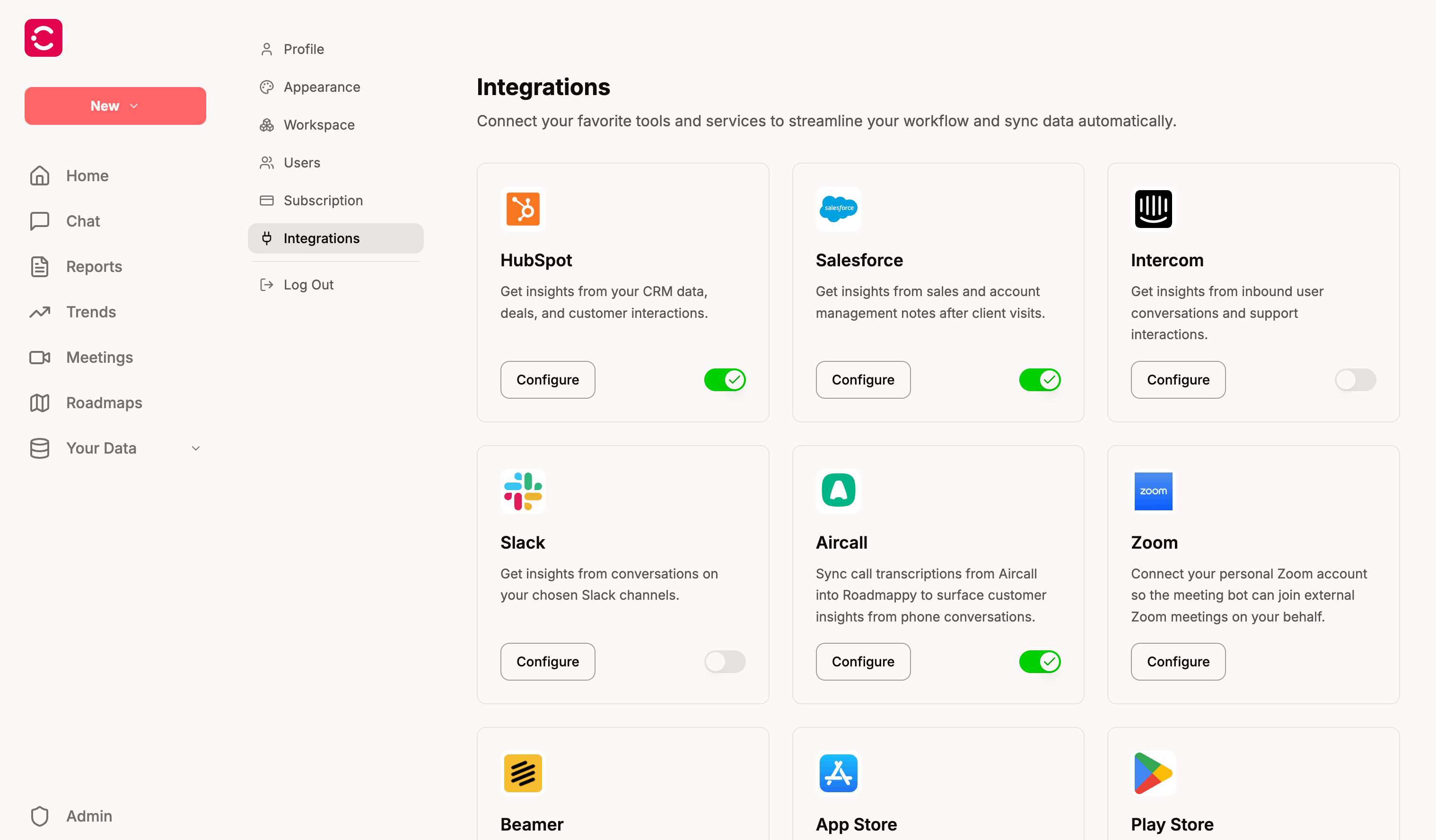
Go to Settings → Integrations. Find the Intercom card and click Configure.
Step 2 — Connect your Intercom workspace
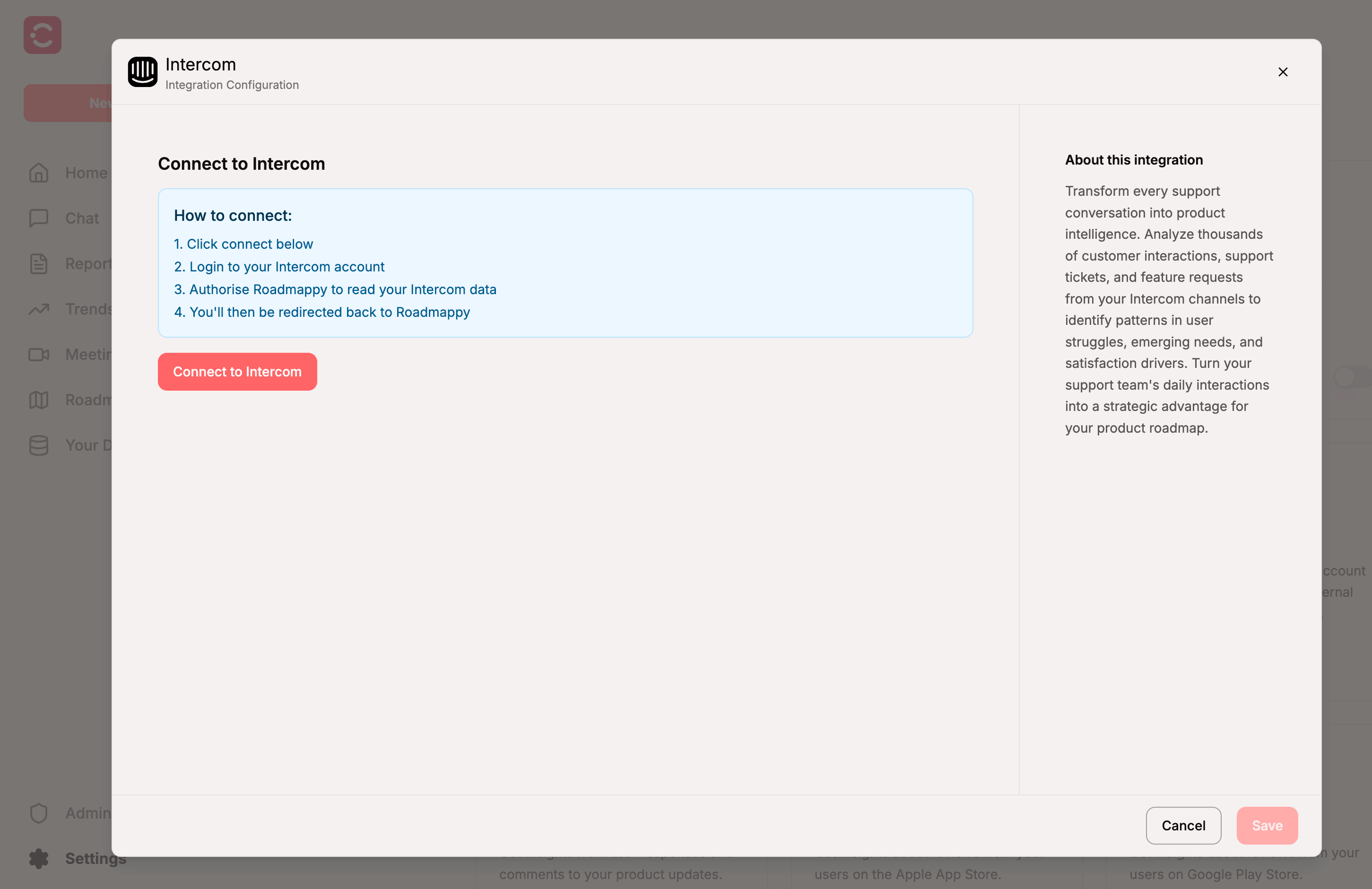
The Intercom integration modal opens. Click Connect to Intercom to begin the OAuth flow. You will be redirected to Intercom.
Step 3 — Approve Intercom permissions
Intercom will ask you to authorise Roadmappy to read data from your workspace. Review the requested permissions and click Authorize access. Roadmappy requests only the read-only scopes needed to ingest conversations with full author information — no write access to anything in your workspace.
Step 4 — Confirm the connection
After approving, you are returned to Roadmappy. The Intercom card on the Integrations page now shows as Connected with an Active toggle. The initial 3-month backfill begins in the background — depending on the size of your workspace, it can take a few hours to complete.
Using Intercom in Roadmappy AI Chat
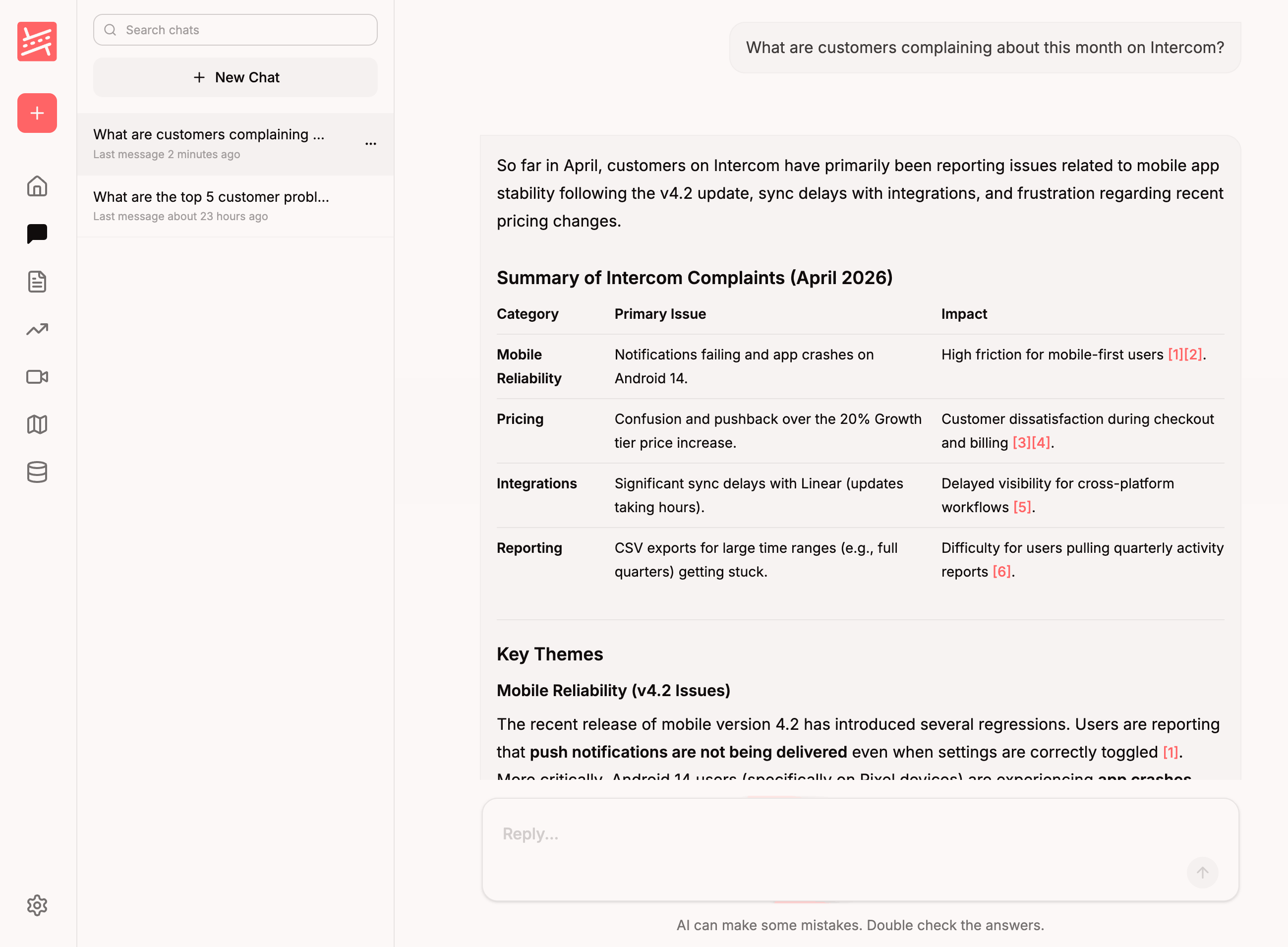
Once Intercom is connected and the initial sync has run, Intercom conversations become part of the data Roadmappy AI Chat can query. When you ask Chat something like:
- "What are customers complaining about this month?"
- "Summarise the support conversations about the new billing flow."
- "Which users reported the login bug?"
…Roadmappy AI reaches into your Intercom history, pulls the most relevant conversations, and cites them directly.
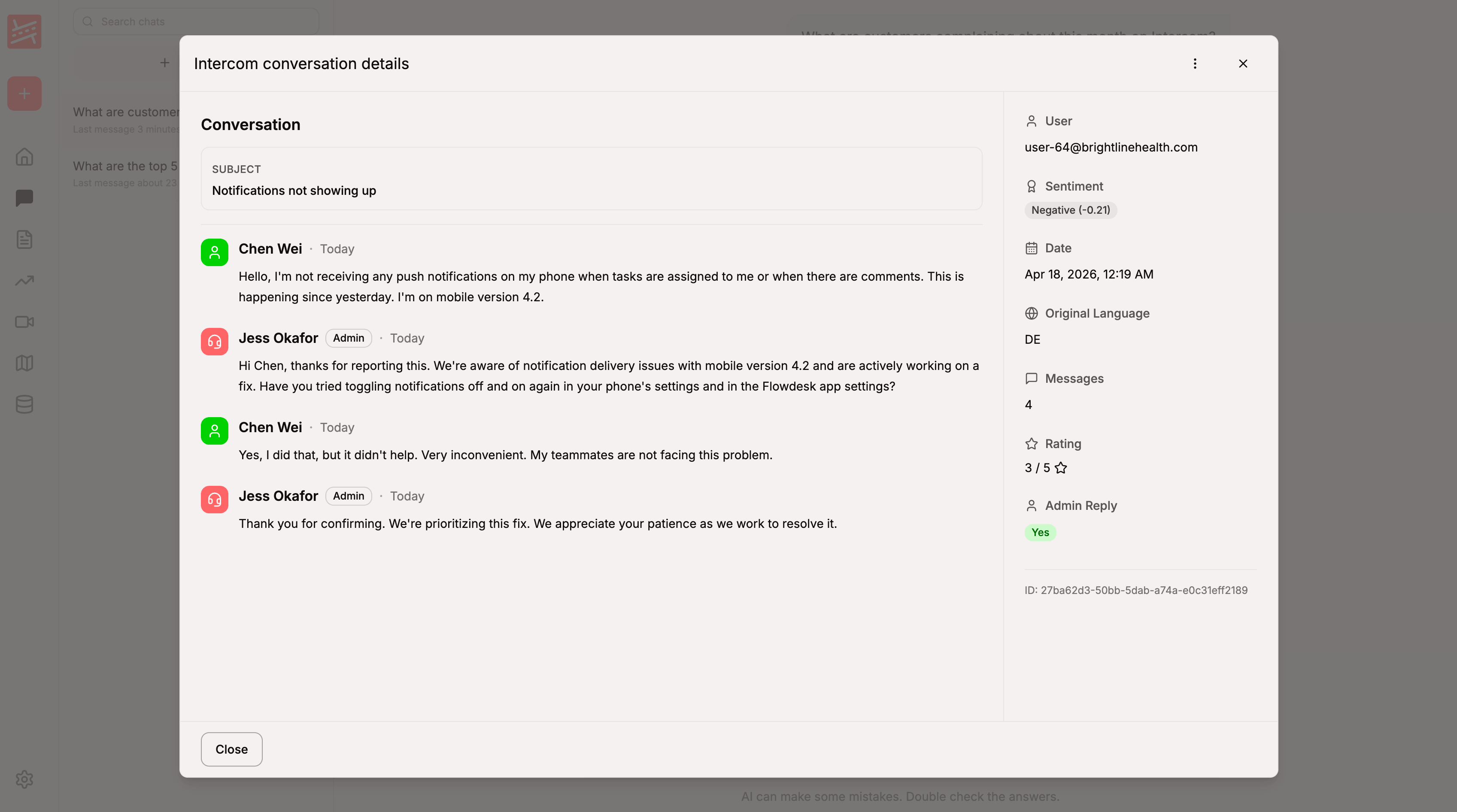
Each cited conversation links back to the underlying thread in Roadmappy so you can read the original messages, see who replied, and jump to the conversation in Intercom if you need more context.
Chat respects the same permissions as the rest of Roadmappy — only users with access to your workspace can query Intercom data, and admins can revoke the integration at any time.
Using Intercom in Reports
Intercom conversations also feed into Reports — the scheduled, Roadmappy AI-authored summaries that land in your inbox or Slack. Reports pull from every connected source (meetings, Intercom, HubSpot, Salesforce, Slack, Aircall) to produce a unified view.
Common ways to use Intercom in reports:
- Weekly support pulse — sentiment trend, top complaint themes, conversations flagged as high-priority, language breakdown.
- Feature feedback — filter the corpus by a product tag and summarise what customers said about it over the period.
- Escalation digest — surface negative-sentiment conversations that didn't get an admin reply, so they don't fall through the cracks.
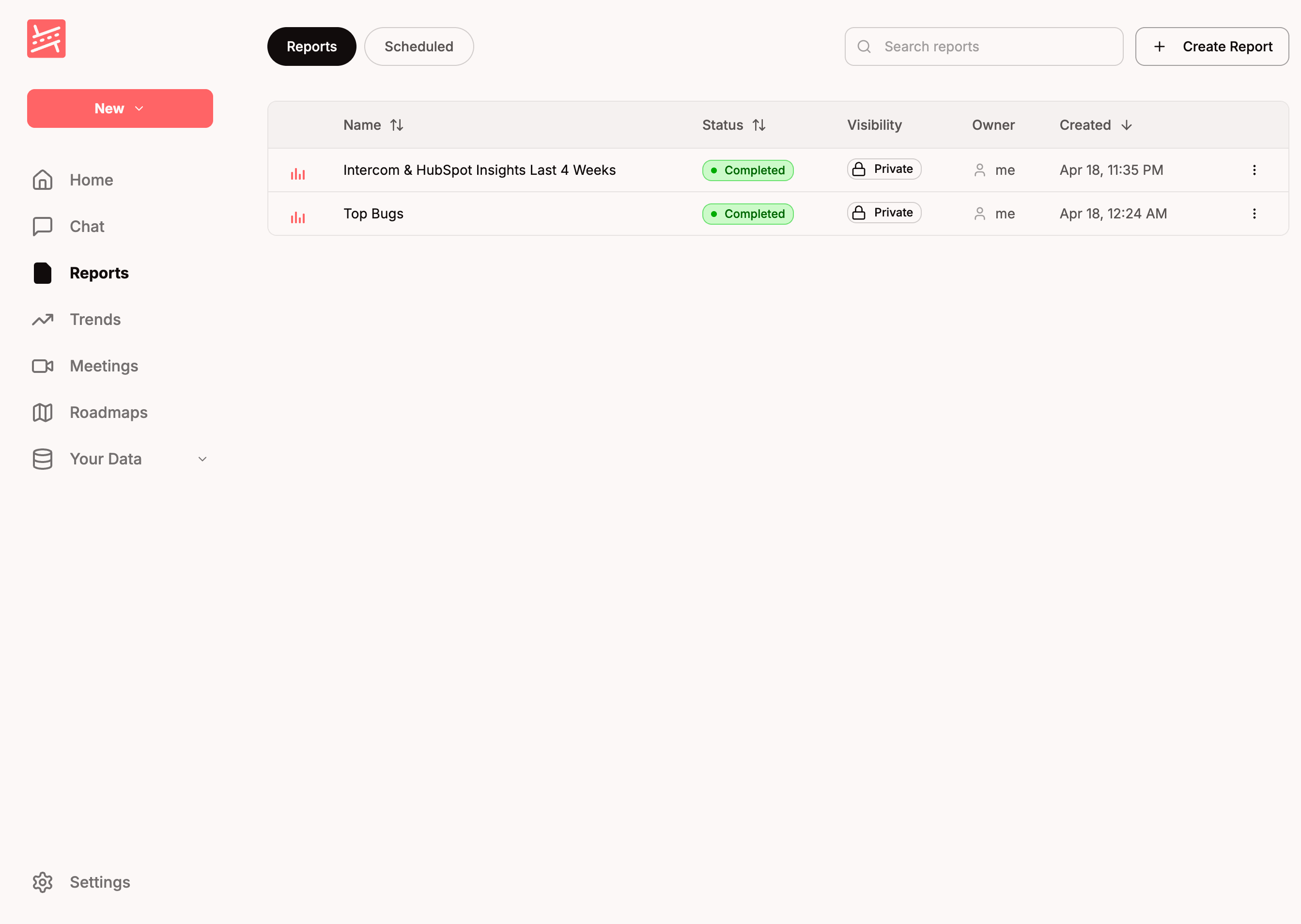
Browse your reports from the Reports list — each entry shows the schedule, the period covered, and the sources it drew from.
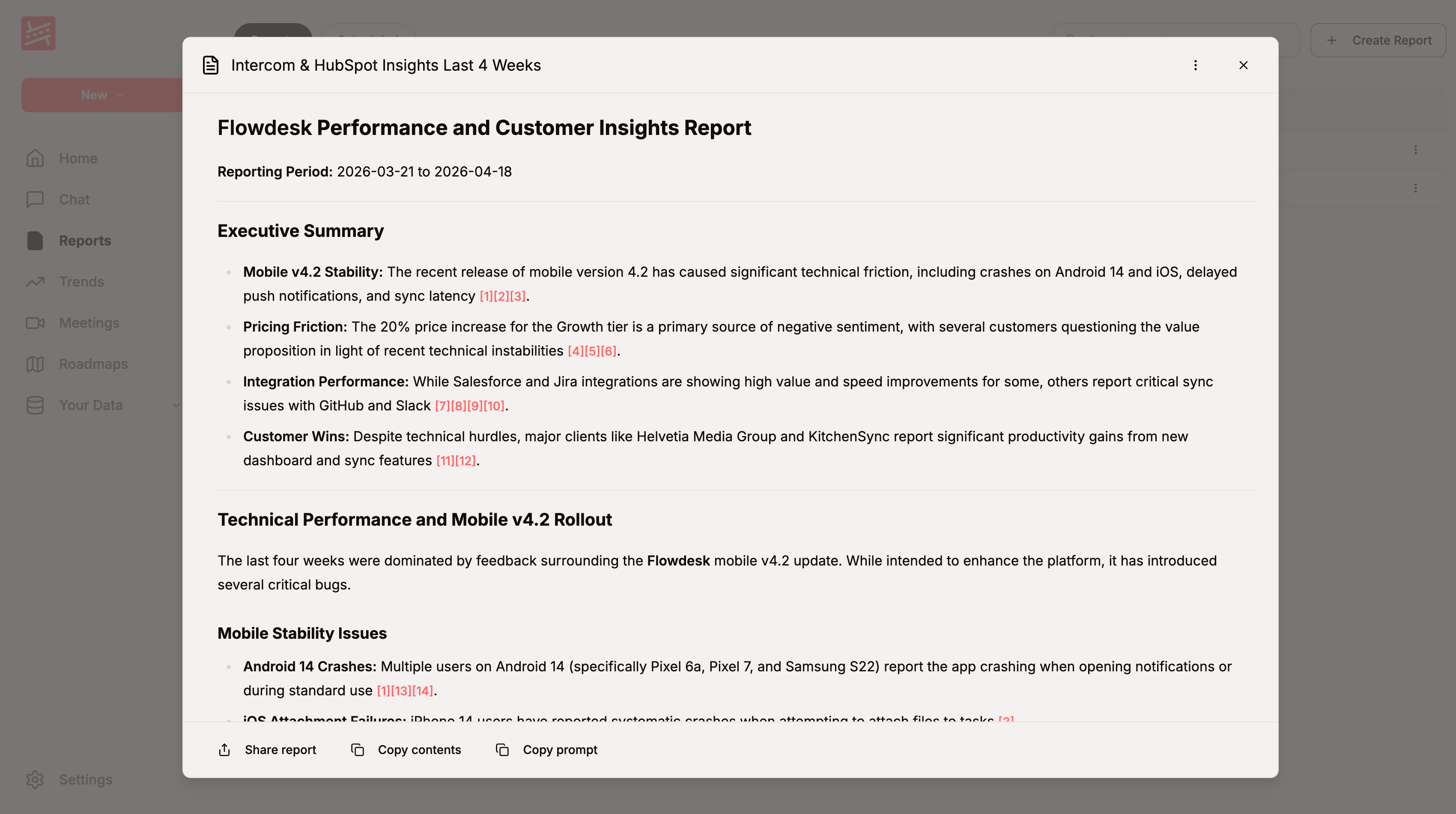
Open a report to see the full Roadmappy AI-authored summary. Every claim cites the exact Intercom conversations (alongside meetings and CRM activity) it drew from, so you can drill into the source material in one click.
Data freshness
After the initial 3-month backfill, Roadmappy runs incremental syncs on a schedule — only conversations modified since the last sync are fetched. You don't need to do anything to keep the data up to date.
Pausing the sync without deleting data
If you just want to stop Intercom syncing for a while — without losing any of the data already ingested — open the Intercom integration modal and flip the Status toggle off. Sync jobs pause immediately; flip the toggle back on to resume. Your conversations, tags, trends, and citations all stay in place while the integration is deactivated.
Deleting all Intercom data
Only workspace admins can delete Intercom data. The Delete flow is admin-gated both in the UI and in the API — editors and viewers see the Danger Zone but the input and button are disabled.
To permanently remove the Intercom integration and every conversation Roadmappy has synced from it, scroll to the Danger zone at the bottom of the Intercom integration modal, type
DELETE into the confirmation field, and click Delete all data and integration.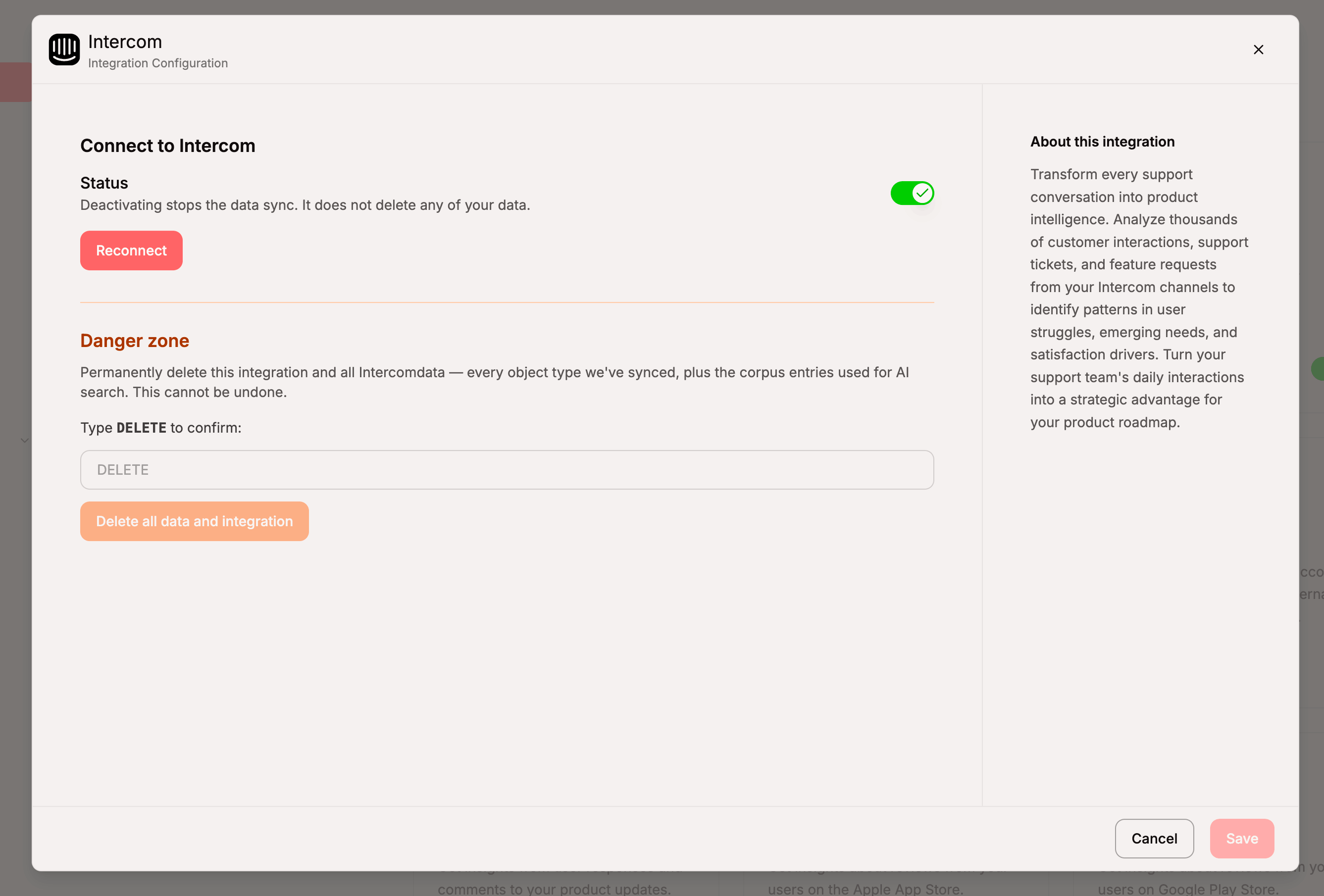
When you confirm, Roadmappy:
- Queues a background wipe of every Intercom conversation synced into Roadmappy.
- Deletes all corpus entries derived from Intercom, so those citations disappear from AI Chat and Reports.
- Hard-deletes the integration record itself, so the Intercom card on the Integrations page immediately shows as disconnected.
- Writes an audit row for each step — object type, deleted row count, and the admin who triggered the deletion — for compliance.
The UI updates right away; the background wipe of the conversations and corpus finishes within a few minutes, depending on volume.
You can reconnect at any time, but the 3-month backfill will run again from scratch.
Deletion is permanent
Deleting the integration removes all Intercom-derived data from your Roadmappy workspace. Reports and chat answers that previously cited deleted conversations will lose those citations. There is no undo.
Troubleshooting
My workspace isn't syncing
- Open Settings → Integrations and confirm the Intercom card shows Connected with the Active toggle on.
- If the toggle is off, flip it on — syncs pause when the integration is deactivated.
- If the initial backfill has been running for more than an hour on a large workspace, contact support and we can check the sync job directly.
I reconnected but new conversations aren't appearing
Reconnecting refreshes the OAuth token but does not re-run the backfill — it waits for the next scheduled incremental sync. If you need an immediate re-sync (for example, to re-ingest conversations from before the 3-month default window), reach out to support.
I connected the wrong Intercom workspace
Click Reconnect in the Intercom modal. This restarts the OAuth flow and lets you authorise a different Intercom workspace, replacing the previous connection. Any conversations already synced from the old workspace will remain until you do a full delete.
Still have questions? Contact us at Contact us at support@roadmappy.io and we'll get back to you.